Why the Same Connector Can Do Completely Different Things
If you've ever plugged a USB-C cable into your laptop to connect a monitor and nothing happened, you've hit the core problem: connectors and cables look identical but carry wildly different capabilities. The physical shape of a port tells you almost nothing about what it actually supports. Understanding four key standards - USB-C, Thunderbolt, HDMI, and DisplayPort - clears up most of the confusion you'll run into with modern devices.
| USB-C connector introduced | 2014 (USB 3.1 generation) (USB Implementers Forum) |
| Thunderbolt 4 max bandwidth | 40 Gbps (Intel Thunderbolt specification) |
| HDMI 2.1 max bandwidth | 48 Gbps (HDMI Forum) |
| DisplayPort 2.1 max bandwidth | 80 Gbps (UHBR20) (VESA DisplayPort specification) |
| Thunderbolt uses USB-C connector | Yes (versions 3, 4, and 5) (Intel) |
| HDMI 2.0 minimum for 4K/60 Hz | Yes (HDMI Forum) |
For anyone setting up a home theater or streaming rig, port compatibility questions come up constantly. Our streaming devices overview covers how different platforms connect to your TV, which pairs well with the port knowledge here.
USB-C: The Connector That Contains Multitudes
USB-C is a connector shape, not a single standard. A USB-C port on a budget phone charger and a USB-C port on a professional laptop may share zero capabilities beyond charging. What actually matters is the protocol running through the connector.
Alt Mode
A USB-C feature that lets the port carry non-USB signals - such as DisplayPort video - through the same connector. Not all USB-C ports support Alt Mode; check device documentation.
Bandwidth
The total data capacity a connection can carry per second, measured in Gbps (gigabits per second). Higher bandwidth supports higher resolutions, faster refresh rates, and more simultaneous devices.
Daisy-Chaining
Connecting multiple monitors or devices in a chain from a single port, rather than requiring one port per device. Supported by Thunderbolt and DisplayPort, but not standard HDMI.
HDR (High Dynamic Range)
A video technology that expands the range of brightness and color a display shows. Requires both a compatible cable standard (HDMI 2.0+ or DisplayPort 1.4+) and an HDR-capable display.
Protocol
The underlying communication standard that determines what a port can actually do. Two ports with the same physical shape can run entirely different protocols with very different capabilities.
Thunderbolt Certification
An Intel-administered program that verifies a cable or device meets Thunderbolt performance standards. Certified cables carry the Thunderbolt lightning-bolt logo and guarantee full bandwidth.
- USB 2.0 over USB-C: Common on cheap cables. Handles charging and basic data (480 Mbps). Cannot drive a display on its own.
- USB 3.2 over USB-C: Faster data transfer (up to 20 Gbps depending on generation). Some ports add DisplayPort Alt Mode to enable video output.
- USB4 over USB-C: The newest USB specification. Requires a USB4-certified cable. Supports up to 40 Gbps and is compatible with Thunderbolt 3 devices.
The practical rule: always check your device's spec sheet to confirm whether a specific USB-C port supports video output (look for a DisplayPort or Thunderbolt symbol next to it). A cable rated only for charging will not carry video even if it physically fits.
Thunderbolt: USB-C's High-Performance Sibling
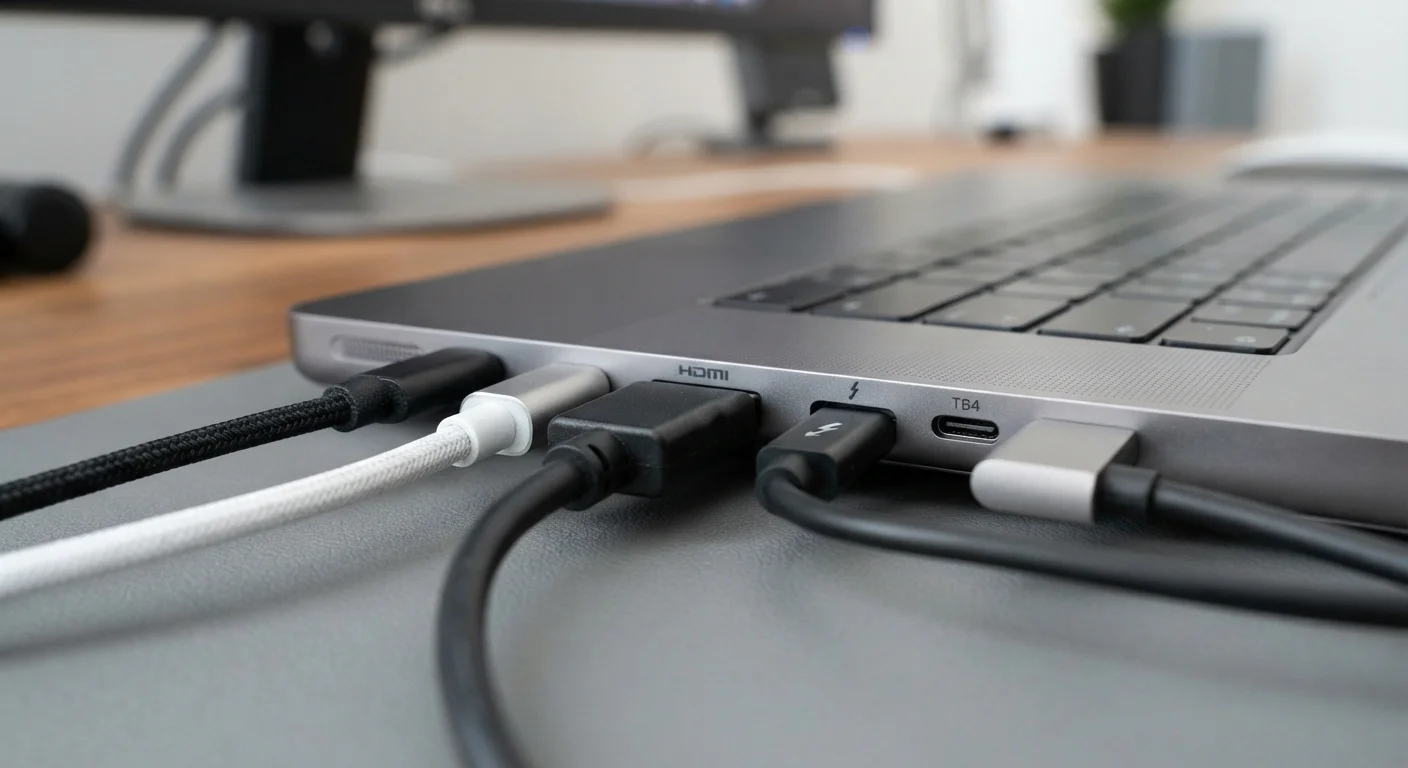
Thunderbolt (versions 3 and 4) uses the USB-C connector but is a proprietary Intel protocol licensed to manufacturers. A Thunderbolt port is always USB-C, but a USB-C port is not always Thunderbolt. Look for a lightning-bolt icon next to the port.
40 Gbps
Thunderbolt 4 peak data throughput
Per Intel's Thunderbolt 4 specification, this bandwidth supports dual 4K displays simultaneously alongside high-speed data transfer.
48 Gbps
HDMI 2.1 cable bandwidth ceiling
According to the HDMI Forum, achieving this requires a cable explicitly rated as Ultra High Speed HDMI - older cables will bottleneck the connection.
6 devices
Max daisy-chain depth via Thunderbolt
Intel's Thunderbolt specification allows up to six Thunderbolt devices connected in sequence from a single host port.
Key Thunderbolt capabilities:
- Thunderbolt 3 and 4: 40 Gbps bandwidth. Supports dual 4K displays or a single 8K display, high-speed external storage, and daisy-chaining up to six devices on a single cable.
- Thunderbolt 5: Emerging standard offering up to 120 Gbps for video-intensive tasks like driving multiple high-refresh-rate monitors.
- Cable compatibility: Thunderbolt cables work in USB-C ports (at USB-C speeds). USB-C cables may not unlock Thunderbolt speeds in a Thunderbolt port - use a certified Thunderbolt cable for full performance.
Passive vs. Active Thunderbolt Cables
Passive Thunderbolt cables (up to about 0.8 meters) support the full 40 Gbps. Longer cables require active electronics built into the cable to maintain signal integrity, which adds cost. If you need a cable run longer than roughly two and a half feet for a Thunderbolt connection, look for cables specifically labeled as active Thunderbolt cables.
HDMI and DisplayPort: The Dedicated Video Standards
Unlike USB-C and Thunderbolt, HDMI and DisplayPort exist specifically to carry audio and video. Both are mature, reliable standards with a straightforward version hierarchy.
HDMI
- HDMI 1.4: Supports 4K at 30 Hz. Adequate for streaming and general TV use.
- HDMI 2.0: Supports 4K at 60 Hz and HDR. The current minimum for most modern TVs and monitors.
- HDMI 2.1: Supports 4K at 120 Hz and 8K at 60 Hz. Relevant for high-refresh-rate gaming and next-gen displays. Requires a 48 Gbps-rated cable (sometimes labeled "Ultra High Speed HDMI").
DisplayPort
- DisplayPort 1.4: Supports 4K at 120 Hz and 8K at 60 Hz using Display Stream Compression (DSC). Common on PC monitors and laptops.
- DisplayPort 2.1: Supports up to 16K with DSC and 4K at very high refresh rates without compression. Cables must be rated for the bandwidth (UHBR10, UHBR20).
- Mini DisplayPort: Identical signal, smaller physical connector. Common on older Apple hardware.
One practical distinction: DisplayPort supports daisy-chaining monitors using a single cable run from the source, which HDMI does not natively support. For multi-monitor desktop setups, DisplayPort is generally the more flexible choice.