Why Data Loss Happens During Phone Switches
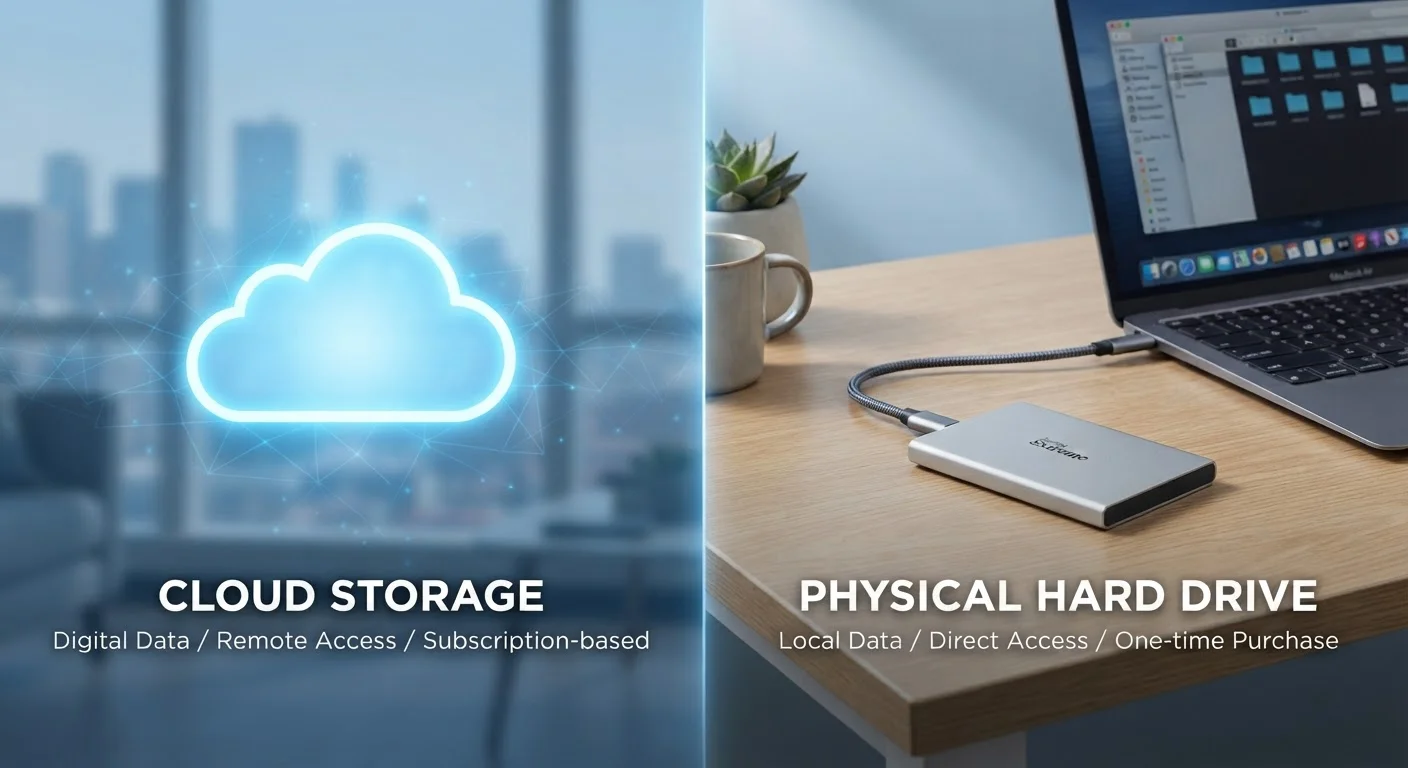
Most people assume that because their photos are "in the cloud," everything will carry over automatically. In practice, data lives in several different places - device storage, manufacturer cloud services, app-specific servers, and local caches - and no single backup method captures all of it at once.
The most common losses come from three sources: authenticator app codes that exist only on the old device, app data stored locally rather than in the cloud, and items that were never backed up to begin with because the account ran out of storage. Understanding where your data actually lives is the foundation of a smooth transfer.
What you will need
Once you have those prerequisites sorted, the process becomes straightforward and takes most people under an hour.
Tools and Setup You'll Need
You don't need specialized equipment to transfer a phone successfully, but a few items make the process faster and reduce the chance of errors.
iCloud or Google One cloud storage
Stores a full backup of your phone's data, including contacts, photos, and app data, accessible during new device setup.
USB-C or Lightning data cable
Enables wired device-to-device transfers, which are often faster and more reliable than wireless options.
Authenticator app (e.g., any TOTP-based app)
Required to transfer two-factor authentication credentials, which do not move automatically during a standard backup.
SIM card removal tool or small paperclip
Used to eject the SIM tray if you are moving a physical SIM from your old device to the new one.
Having your login credentials ready is just as important as the physical tools. Gather passwords for your Google or Apple account, your email provider, and any apps that require re-authentication after installation. A password manager makes this significantly easier.
Step-by-Step Transfer Instructions
Follow these steps in order. Skipping the backup steps to save time is the single most common reason people contact support after a phone switch.
Audit your old phone's storage and accounts
Before backing anything up, take five minutes to review what's on your device. Open your photo library and delete obvious duplicates. Check which apps you actually use - there's no reason to migrate ones you haven't opened in a year. Confirm which email, cloud, and social accounts are linked to the device so you can re-sign in on the new one without hunting for passwords.
Back up your old device to the cloud
On iPhone: Go to Settings > [Your Name] > iCloud > iCloud Backup and tap Back Up Now. On Android: Go to Settings > Google > Backup and confirm the backup runs. Wait for it to complete fully - a partial backup is worse than none because it creates a false sense of security.
Handle authenticator apps and two-factor codes
This is the step most people skip - and later regret. Authenticator apps that generate one-time login codes do not transfer automatically through a standard backup. Before you wipe or stop using the old phone, export your accounts within the authenticator app itself (most offer a built-in transfer or export function) or generate recovery codes for every service that uses two-factor authentication and store them somewhere safe, such as a password manager.
Use the manufacturer's device transfer tool
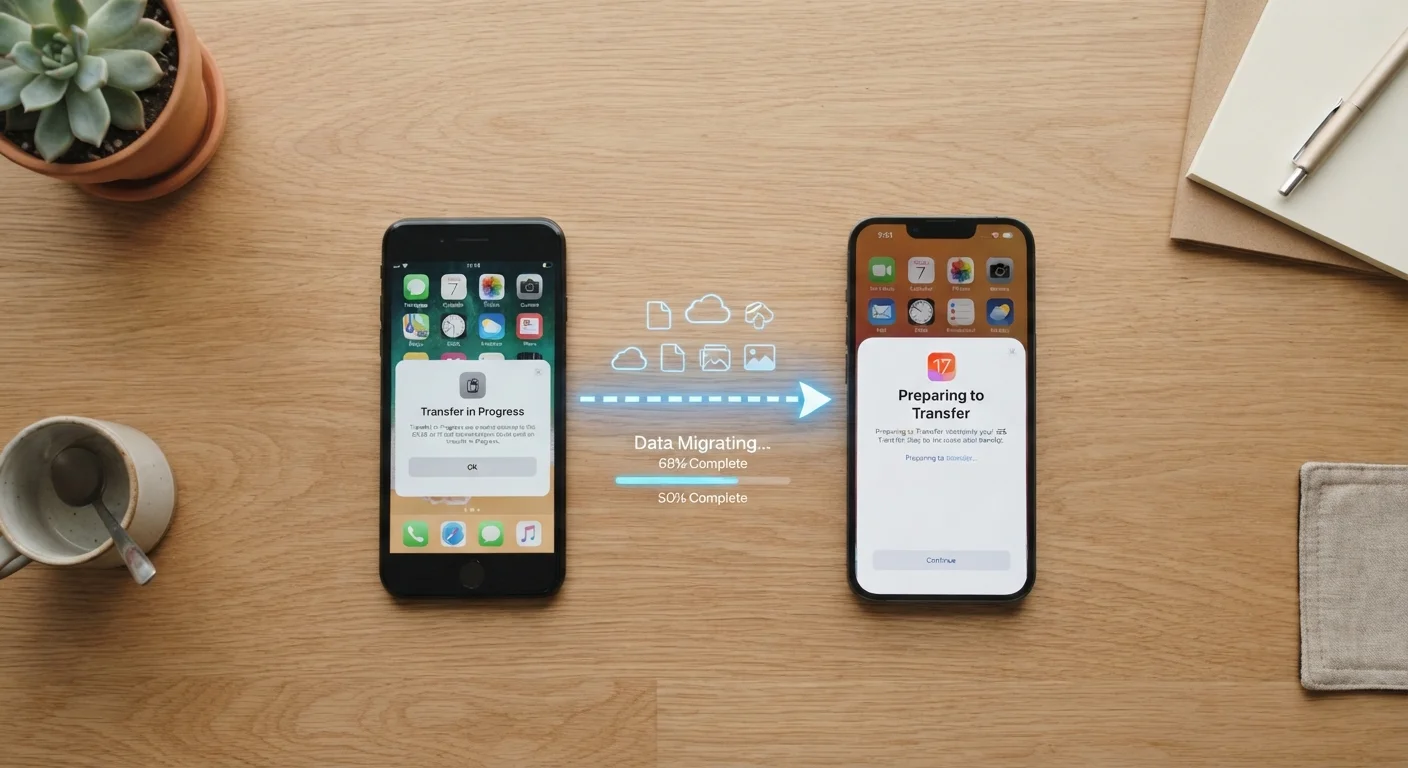
Both major platforms include purpose-built migration tools. iPhone to iPhone: Use Quick Start - hold the two phones near each other during new device setup and follow the on-screen prompts. Android to Android: Most devices walk you through a Copy your data screen at setup, connecting via cable or Wi-Fi Direct. Switching platforms (Android to iPhone or vice versa): Use Apple's Move to iOS app or Google's equivalent transfer tools. These handle contacts, photos, and calendars but generally do not carry over paid apps from the other ecosystem.
Re-download apps and restore app-specific data
After setup completes, your app list should repopulate automatically from your account's purchase history. However, some apps store data locally or in proprietary cloud systems rather than in the standard backup. Chat apps, mobile games, and certain note-taking tools often need you to export or transfer data manually within the app before switching. Check the support documentation for any app where history or progress matters to you.
Verify everything transferred correctly
Spend 10-15 minutes checking the categories that matter most: scroll through your contacts, open the photo library and confirm recent pictures are present, log in to your most-used apps, and send a test message. Keep your old phone accessible (don't factory reset it yet) for at least 48 hours while you discover anything that didn't make the trip.
Don't Factory Reset Your Old Phone Too Soon
It's tempting to wipe the old device the moment the new one feels set up. Wait at least 48 hours of normal use. Missing data - saved passwords, app-specific files, or authenticator codes - typically surfaces within the first two days. Once you factory reset, recovery becomes difficult or impossible without a prior backup.
After the Transfer: What to Check
A successful transfer isn't just about what moved over - it's about confirming nothing important was left behind. Use your new phone normally for a day or two before wiping the old one.
Authenticator Codes Can Lock You Out Permanently
Two-factor authentication codes stored in authenticator apps are not included in standard cloud backups. If you move to a new device without transferring or recording these codes first, you may lose access to any account that requires them. Transfer authenticator accounts before completing setup on the new phone, and store recovery codes in a secure password manager.
Once you're satisfied everything is in place, review the privacy and security settings on your new device. New phones often have permissive defaults that share more data than most users intend. See our privacy settings guide for a practical checklist.
Lock Down Privacy Settings on Your New Phone
A new device is a clean slate - take advantage of it. Review which apps have access to your location, microphone, and camera before you start using it daily. Our guide to gadget privacy settings walks through the specific toggles worth changing on both platforms.
With your data intact and your security settings configured, your new phone is genuinely ready to use - not just technically set up.